

Crop vs. Resize: What's the Difference?
Cropping and resizing both change image dimensions, but they serve different purposes. Learn how each method works and when to use them.
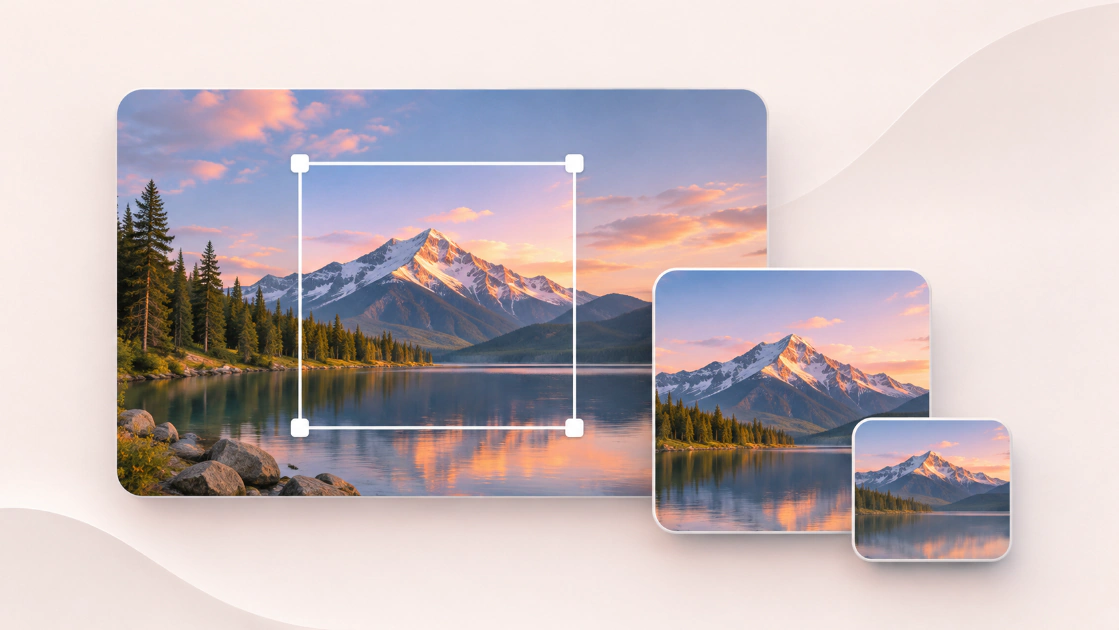
Cropping and resizing both change the dimensions of an image, but they serve different purposes.
Cropping changes which part of an image is visible. Resizing changes its pixel dimensions.
For example, cropping a landscape photograph into a square removes part of the scene, while resizing it proportionally keeps the entire scene at a different resolution.
What Is Image Cropping?
Cropping removes unwanted areas from an image while keeping the selected portion.
If you have a photograph measuring 1600 × 1200 pixels and select a 1200 × 1200 pixel area, the resulting image becomes square. The pixels inside the selected area remain unchanged by the cropping operation itself.
Common uses for cropping include:
- Removing unwanted areas near the edges of an image.
- Improving composition and subject placement.
- Creating profile pictures and product thumbnails.
- Fitting images into a specific aspect ratio.
Cropping does not require resampling the retained pixels. However, exporting the cropped image in a lossy format such as JPEG may introduce compression-related quality loss.
What Is Image Resizing?
Resizing changes the width and height of an image in pixels. Standard resizing keeps the entire image but scales it to new dimensions.
For example, a 1600 × 1200 pixel image can be resized to 800 × 600 pixels. The entire scene remains visible, but the image contains fewer pixels.
Resizing is useful when you need to:
- Prepare images for websites and applications.
- Generate thumbnails and previews.
- Meet specific pixel dimension requirements.
- Create multiple sizes of the same image.
Unlike cropping, resizing generally involves resampling, a process that calculates pixel values to fit the new dimensions.
Reducing an image's dimensions removes some detail. Enlarging an image adds pixels but does not recover missing original details.
Cropping vs. Resizing: Key Differences
| Characteristic | Cropping | Resizing |
|---|---|---|
| Main purpose | Change framing | Change pixel dimensions |
| Removes image content | Yes | No, with standard scaling |
| Requires resampling | No | Usually |
| Can change aspect ratio | Yes | Yes |
| Can cause distortion | No | Yes, if proportions are not preserved |
| Can reduce file size | Yes, but not guaranteed | Yes, but not guaranteed |
| Best used for | Composition and framing | Resolution and output dimensions |
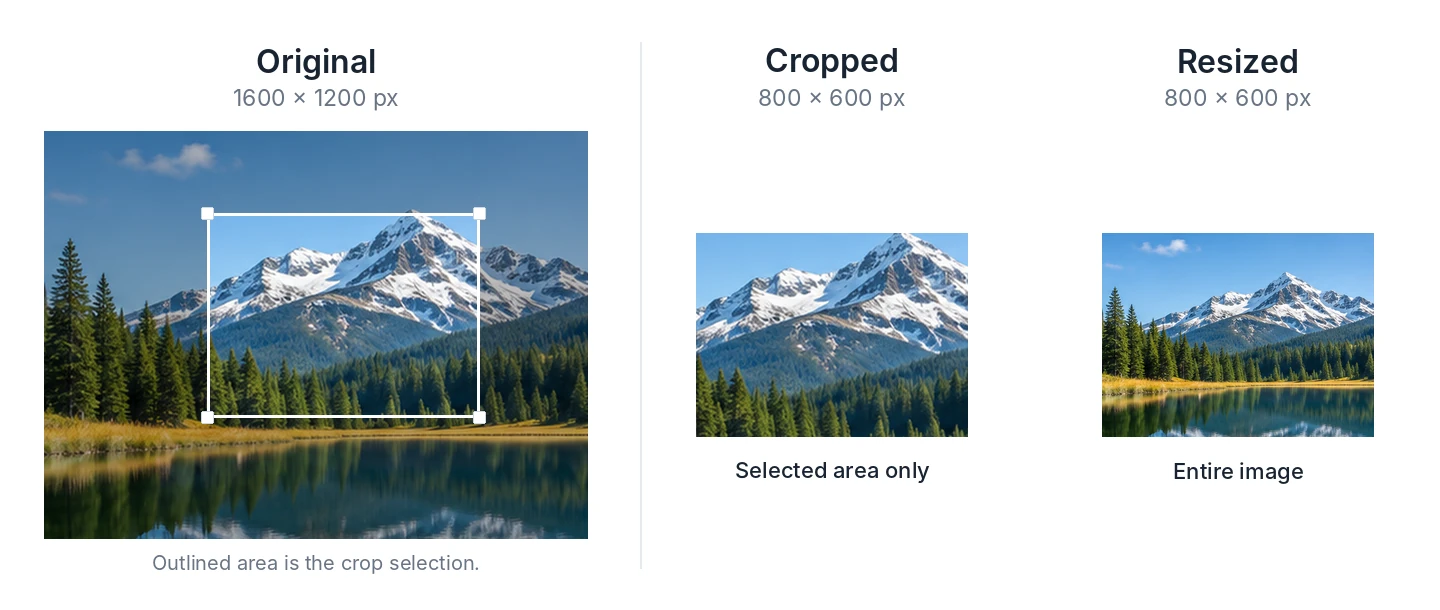
Consider a photograph measuring 1600 × 1200 pixels.
Cropping it to 800 × 600 pixels retains only a selected portion of the photograph. Resizing it to 800 × 600 pixels retains the entire scene at a lower resolution.
Both results have identical pixel dimensions, but they contain different visual information.
Understanding Aspect Ratio
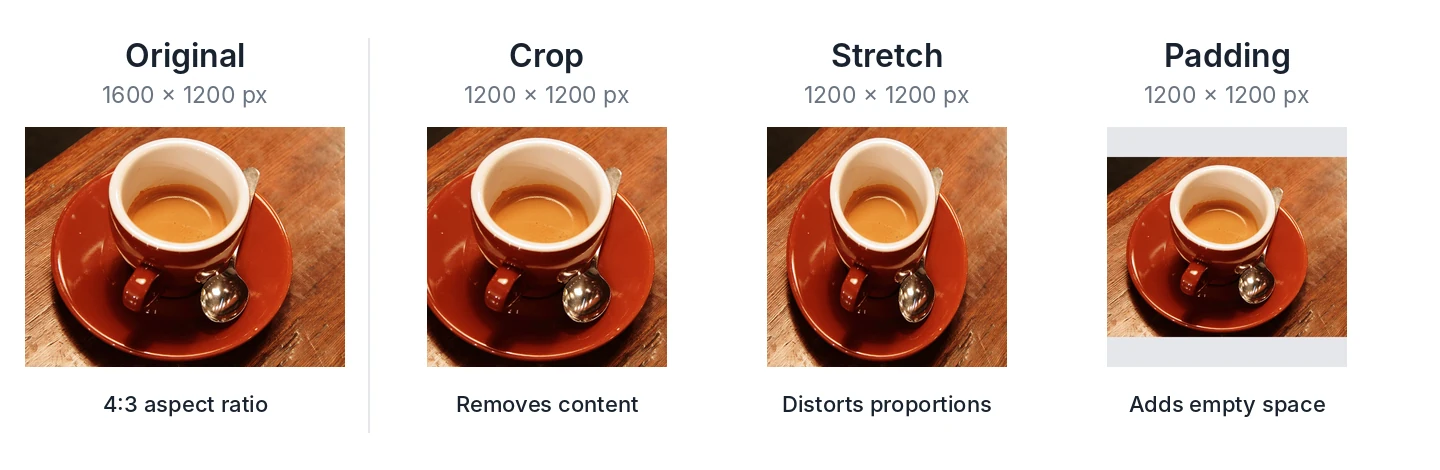
Aspect ratio describes the proportional relationship between an image's width and height. For example, a 1600 × 1200 pixel image has a 4:3 aspect ratio.
If you need to turn that image into a 1200 × 1200 pixel square, there are three common approaches:
- Crop: Remove content from the sides while preserving the natural proportions of the remaining subject.
- Stretch: Resize the entire image to 1200 × 1200 pixels. All content remains visible, but objects may appear narrower than they originally were.
- Add padding: Resize the image proportionally to 1200 × 900 pixels and add 150 pixels of padding above and below it. Both the original content and its proportions are preserved.
For a profile picture or product thumbnail, cropping may produce a better composition. For a product photograph where every part of the item must remain visible, padding may be a better choice.
Should You Crop or Resize First?
In most cases, crop first and resize afterwards.
Suppose you have a 4000 × 3000 pixel photograph and need a 600 × 600 pixel thumbnail.
- Crop the original photograph to a suitable square area, such as 3000 × 3000 pixels.
- Resize the cropped image to 600 × 600 pixels.
- Export the final image.
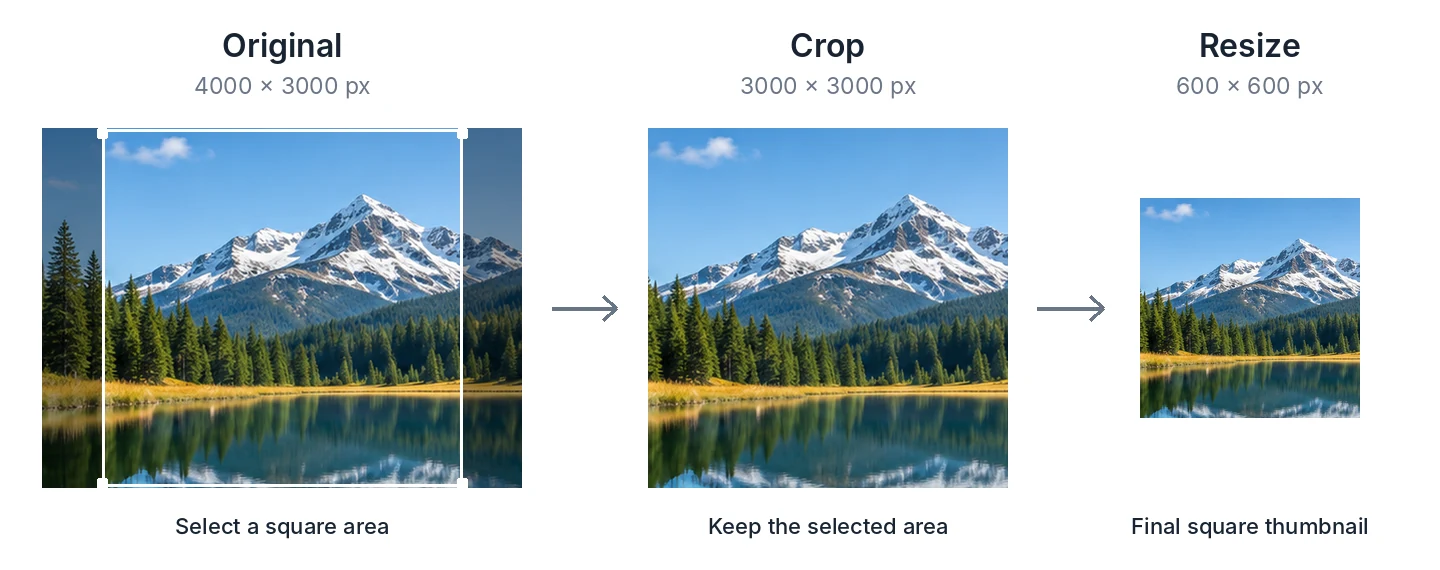
Cropping at the original resolution gives you more flexibility when selecting the composition and helps avoid unnecessary resampling.
Two Things to Keep in Mind
Smaller dimensions do not always mean a smaller file. Image format, compression settings, and visual complexity also affect file size. A smaller PNG, for example, can still be larger than a higher-resolution JPEG.
Keep a copy of the original image. Working from the original allows you to create different crops and sizes without repeatedly processing an already modified image.
Crop and Resize Images Online
You can crop and resize images directly in your browser using these free Dran Works tools:
Try it yourself
Both tools process images locally in your browser. No account is required, and your image files are never uploaded to a server.