

AI Image Upscaler
Enlarge your images 2× or 4× with AI-generated detail, right in your browser.
- 2× / 4× upscaling
- Processed in your browser
- Free to use
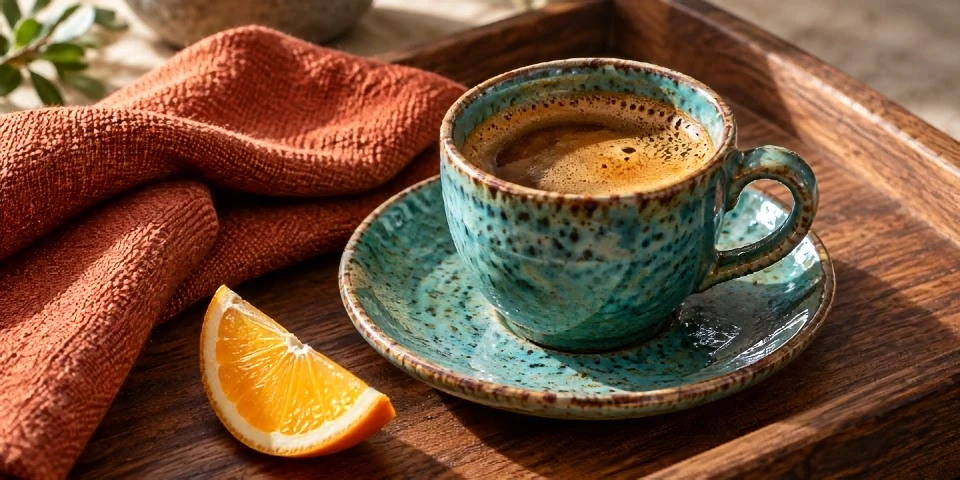
 Original
AI · 2×
Original
AI · 2×
Checking browser support…
Your image
Choose an image to begin.
A little image, more possibilities
More pixels.
A closer look.
Enlarge small product photos, website images, and older pictures with AI. Create a larger version with additional pixels and estimated detail.
Product photos
Create a larger version of a small product shot for a listing or catalog. Review labels and fine textures before publishing.
Photos for your website
Try a larger image for a hero, article or presentation when the source is too small for the space.
Older, smaller pictures
Make a larger copy of a saved photo or compressed picture. Compare faces and lettering carefully, since AI estimates the missing detail.
Four simple steps
How to upscale an image
- Step 01
Choose one image
Pick a still JPG, PNG or WebP from your device, or drop it into the workspace.
- Step 02
Set scale and format
Choose 2× or 4×, then PNG, JPG or WebP. Adjust export quality for JPG and WebP if needed.
- Step 03
Start upscaling
Click Upscale image to process locally. The first run downloads the AI files; speed depends on your device.
- Step 04
Compare and download
Drag the slider to inspect the detail, then download the full-size result when you are happy with it.
What to expect from AI upscaling
AI estimates new detail
The model predicts how a larger image might look. Lettering, facial details and repeating textures may change, so compare the output with your source before saving.
Your device sets the pace
The upscaler uses graphics acceleration when available and automatically switches to your device's processor otherwise. Processing can take longer without graphics acceleration, especially for larger images. The AI model and runtime download when first needed; image contents and filenames are not uploaded.
Start with a manageable image
Choose one still JPG, PNG or WebP, up to 25 MiB and 4 megapixels. At 4×, the source must be no larger than 1 megapixel. Output stays within 16 megapixels and 8192px per side.
Save the format you need
PNG keeps a lossless copy of the generated pixels. JPG and WebP offer adjustable export quality. Transparent sources keep transparency in PNG and WebP; JPG uses a solid background.
For a precise change of dimensions without AI-generated detail, use Image Resizer. Explore Image Tools for the other image workflows.
Try it with your own image.
Choose a photo, compare the detail, and save a larger version. No account or image uploads.