Admin Bar Cleaner
Admin Bar Cleaner helps simplify the WordPress Admin Bar by hiding unnecessary toolbar items for users who match your Global Audience configuration.
WordPress core, themes, and plugins can add shortcuts and menus to the Admin Bar. On websites with many plugins, the toolbar can become crowded with items that clients or other users rarely need.
Admin Bar Cleaner lets you reduce that clutter while keeping useful shortcuts available.
What Is the WordPress Admin Bar?
The WordPress Admin Bar, also called the Toolbar, appears at the top of the screen for logged-in users when the toolbar is enabled.
Depending on the website, current page, installed plugins, and user's permissions, it may contain items such as:
- Site navigation.
- Comments.
- New content shortcuts.
- User account controls.
- Plugin shortcuts.
- Theme-specific tools.
- SEO tools.
- Cache controls.
- Maintenance or developer actions.
The exact contents can differ between the WordPress admin area and the frontend of the website.
How Admin Bar Cleaner Works
Admin Bar Cleaner detects supported items registered in the WordPress Toolbar and makes them available for configuration.
You can hide unnecessary items for users who match your DAC Global Audience.
The underlying WordPress feature, theme, or plugin is not modified.
Admin Bar Cleaner only changes whether supported toolbar items are displayed to affected users.
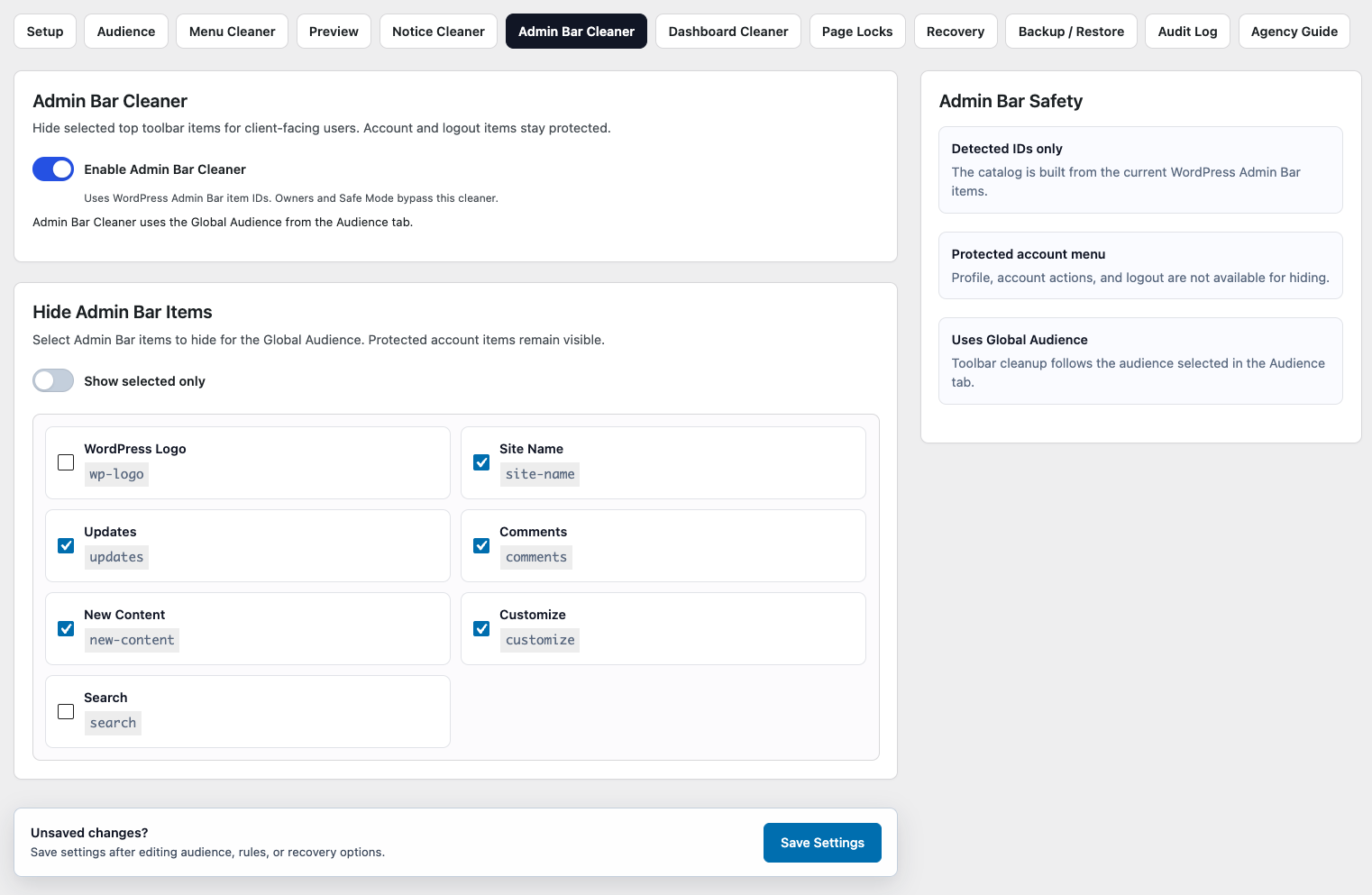
Hide Admin Bar Items
Use Admin Bar Cleaner to hide shortcuts that are unnecessary for your users.
For example, a client who primarily manages content may not need toolbar shortcuts related to:
- Plugin maintenance.
- Theme configuration.
- Cache management.
- SEO administration.
- Developer tools.
- Other technical plugin features.
Removing unnecessary shortcuts can make the toolbar easier to understand and reduce accidental navigation into areas unrelated to the user's normal work.
Parent and Child Items
The WordPress Admin Bar can contain nested menu structures.
A top-level toolbar item may contain one or more child items beneath it.
When configuring Admin Bar Cleaner, consider the relationship between parent and child items so that the remaining toolbar still makes sense.
For example, hiding several child items while leaving an otherwise empty parent visible may create confusing navigation.
Preview and test the resulting toolbar after making significant changes.
Hiding Is Not Access Restriction
Admin Bar Cleaner controls toolbar visibility.
It does not remove WordPress capabilities or automatically prevent users from accessing the destination associated with a hidden toolbar item.
For example, hiding a plugin shortcut from the Admin Bar does not necessarily prevent the user from reaching that plugin's admin page through the main WordPress menu or a direct URL.
Admin Bar Cleaner simplifies navigation. It is not an access-control system.
If access to an admin page must be restricted, use Page Locks where appropriate.
Global Audience Applies
Admin Bar Cleaner uses the DAC Global Audience configuration.
This allows client-facing users to receive a simplified toolbar while users outside the configured audience continue seeing their normal Admin Bar.
Owners and managers who bypass cleanup remain unaffected.
See Audience for more information about Global Audience modes and targeting.
WordPress and Plugin Items
The Admin Bar can contain items registered by both WordPress and third-party plugins.
Admin Bar Cleaner can detect supported toolbar items and make them available for cleanup.
For example, a website may include shortcuts for:
- Site navigation.
- Comments.
- Creating new content.
- SEO tools.
- Cache management.
- Backups.
- Analytics.
Administrators may need many of these shortcuts, while clients may only need the items related to everyday content management.
Admin Bar Cleaner lets you simplify the toolbar without removing the underlying tools from the website.
Dynamic Admin Bar Items
Some Admin Bar items appear only under certain conditions.
An item may depend on:
- The current WordPress page.
- The current user's capabilities.
- The active theme.
- Installed plugins.
- Plugin configuration.
- Whether the user is viewing the frontend or the admin area.
- Other runtime conditions.
Because of this, not every toolbar item will necessarily appear in every context.
When reviewing your configuration, check both the WordPress admin area and the frontend when relevant.
Third-Party Plugin Compatibility
WordPress plugins can register Admin Bar items in different ways.
Admin Bar Cleaner can manage supported items available through the standard WordPress Toolbar system, but behavior may vary between third-party plugins.
Some plugins may:
- Create toolbar items dynamically.
- Change item IDs depending on context.
- Add different items on the frontend and in the admin area.
- Modify toolbar items after the page loads.
- Change their toolbar structure between plugin versions.
Because of this, Admin Bar Cleaner may not be able to manage every custom toolbar element created by every plugin.
After changing third-party toolbar items, test the affected user experience.
After Installing or Updating Plugins
Installing, activating, or updating a plugin may introduce new Admin Bar items.
After significant changes to your WordPress installation, review the toolbar and Admin Bar Cleaner again.
Check whether newly added shortcuts are useful to the affected users or should be hidden.
The same review may be useful after major theme updates or configuration changes.
Example: Simplifying a Client Toolbar
Suppose a client's Admin Bar contains:
Site Name
Comments
New
SEO
Clear Cache
Backup
Performance
User Account
The client primarily edits pages and publishes content.
A simplified toolbar might keep:
Site Name
Comments
New
User Account
while hiding:
SEO
Clear Cache
Backup
Performance
Users outside the affected Global Audience can continue seeing their normal toolbar.
The client receives simpler navigation without changing the underlying plugins, capabilities, or website functionality.
Preview and Test
After configuring Admin Bar Cleaner, use Preview to inspect the toolbar for a selected role.
Check that:
- Important shortcuts remain available.
- Unnecessary items are removed.
- Parent and child menus still make sense.
- The toolbar remains useful on relevant admin pages.
Because toolbar items can behave differently depending on the page or user context, perform a final test using an appropriate WordPress user account.
If the frontend toolbar is important to the user's workflow, test it there as well.
Recommended Approach
When configuring Admin Bar Cleaner:
- Configure the appropriate Global Audience.
- Identify which toolbar shortcuts users actually need.
- Hide technical or unnecessary items.
- Review parent and child item relationships.
- Keep navigation and account items that remain useful.
- Preview the affected role.
- Test both admin and frontend contexts when relevant.
- Review Admin Bar Cleaner again after significant plugin or theme changes.
Do not hide toolbar items simply because they are available to hide.
The goal is to make navigation clearer without removing shortcuts that users genuinely rely on.
Limitations
Admin Bar Cleaner manages supported items registered through the WordPress Toolbar system.
It does not modify WordPress roles or capabilities, restrict access to the destination of a hidden item, or modify the underlying plugin or feature.
Toolbar elements created outside the standard WordPress system may not be available for cleanup.
For related admin cleanup tasks, use:
- Menu Cleaner for WordPress admin navigation.
- Dashboard Cleaner for Dashboard widgets.
- Notice Cleaner for supported admin notices.
- Page Locks when access to an admin page must be restricted.
Next Step
You have now covered the main DAC admin-cleanup tools.
Before applying a complete configuration to clients or other users, continue to Safety & Recovery to understand how DAC protects administrative access and how to recover from an incorrect configuration.