Preview
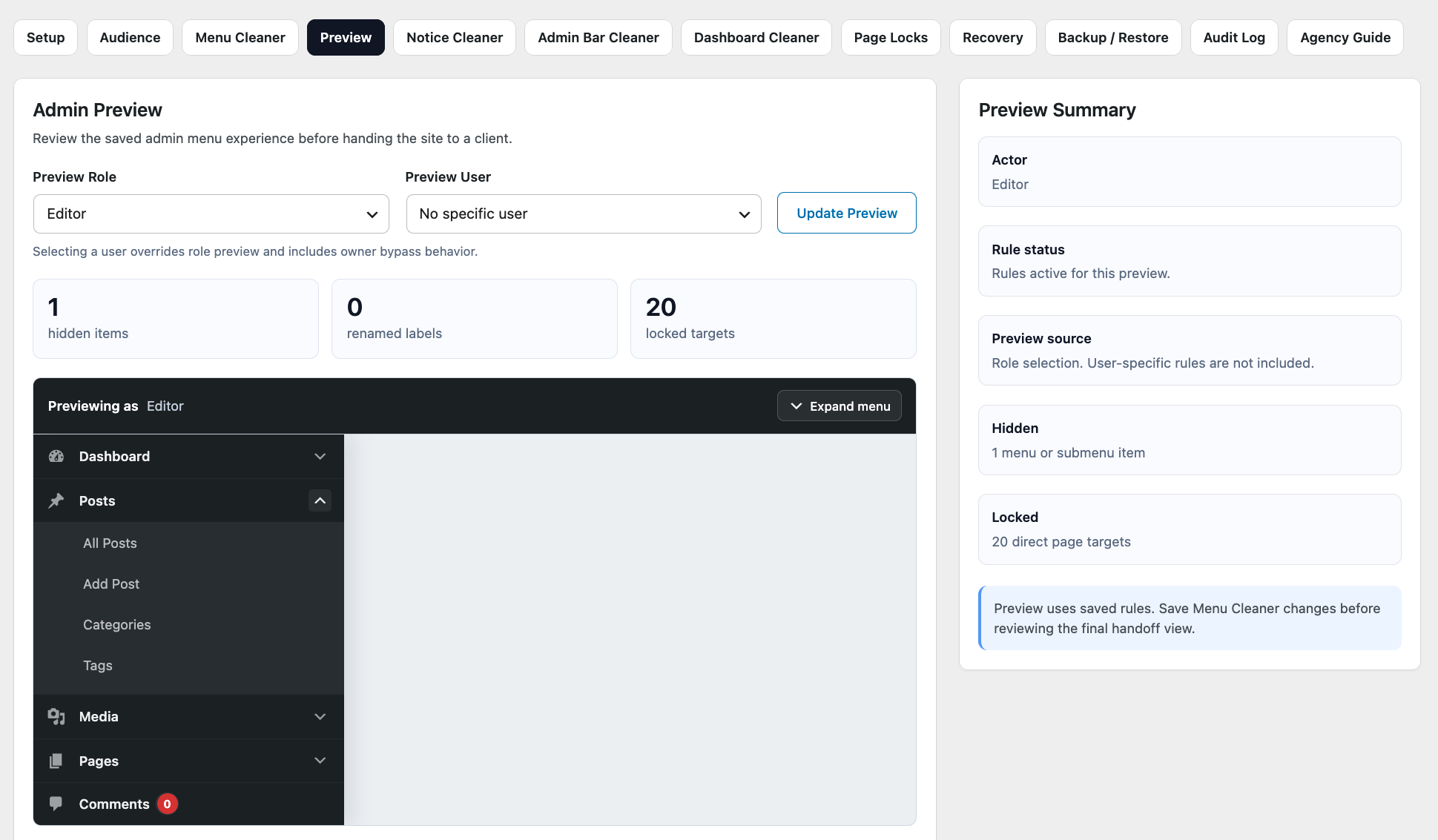
Preview lets you inspect how Dran Admin Cleaner (DAC) will shape the WordPress admin navigation for a selected role or user.
It provides a quick way to review Menu Cleaner changes and Page Lock information before testing the configuration with an actual WordPress account.
Preview is a configuration tool. It does not reproduce the complete WordPress admin interface.
What Preview Shows
Preview focuses on the parts of the DAC configuration that can be represented directly in the preview interface.
Depending on your configuration, Preview can show:
- WordPress admin menu and submenu structure.
- Menu items hidden by Menu Cleaner.
- Renamed menu labels.
- Reordered menu items.
- Risk information associated with admin items.
- Page Lock status and related lock counts.
This makes Preview especially useful when reviewing navigation changes before handing a website over to a client or another user.
Preview does not currently simulate the complete output of Notice Cleaner, Dashboard Cleaner, or Admin Bar Cleaner.
Those features should be reviewed and tested in the actual WordPress admin environment.
Preview by Role
You can preview the DAC configuration for a WordPress role.
For example:
- Administrator
- Editor
- Author
- Contributor
Role Preview is useful when your configuration applies broadly to users who share the same role.
For example, if your Global Audience targets Editor, previewing the Editor role lets you review the menu structure intended for those users.
Preview by User
You can also preview the configuration for an individual WordPress user.
User Preview is useful when targeting or Page Lock behavior depends on a specific account rather than only on its WordPress role.
This can help you inspect cases where two users with the same role may receive different DAC behavior because of user-specific configuration.
What to Check During Preview
When reviewing a role or user, check that:
- Required menu items remain available.
- Hidden items are no longer shown.
- Renamed labels are clear.
- Menu ordering feels natural.
- Parent and submenu relationships still make sense.
- Page Lock indicators match the restrictions you intended.
- Risk information does not reveal an unexpected configuration.
The goal is to make the admin navigation easier to understand without hiding tools users actually need.
Preview and Menu Cleaner
Preview is particularly useful with Menu Cleaner.
After hiding, renaming, or reordering menu items, use Preview to inspect the resulting navigation for the affected role or user.
If the menu becomes confusing, adjust the configuration before adding more changes.
Preview gives you a faster feedback loop than repeatedly switching between accounts while configuring navigation.
Preview and Page Locks
Preview can display Page Lock information associated with the selected role or user, including lock status or counts where available.
This is useful for reviewing whether the configuration appears to match your intent.
However, Preview is not a substitute for testing Page Locks directly.
For important access restrictions, use an actual WordPress account and test:
- Normal navigation to the protected page.
- Direct access using the admin page URL.
- Redirect behavior.
- Related workflows that may depend on that page.
Manual Page Locks have their own targeting conditions, so final access behavior should always be verified with the relevant user account.
What Preview Does Not Show
Preview does not recreate the complete WordPress admin environment.
In particular, it does not currently preview the visual result of:
- Notice Cleaner.
- Dashboard Cleaner.
- Admin Bar Cleaner.
It also does not reproduce arbitrary behavior created by WordPress, themes, or third-party plugins.
To review those areas, test the actual WordPress admin interface using an appropriate account.
Preview Is Not User Impersonation
Preview does not log you in as another user and should not be treated as full user impersonation.
An actual WordPress account may have:
- Different capabilities.
- User-specific plugin settings.
- Different preferences.
- Permissions provided by third-party plugins.
- Runtime conditions that Preview does not simulate.
Preview is best used to inspect DAC's menu and Page Lock representation quickly during configuration.
For important workflows, perform final testing with the actual role or user account you intend to support.
A Recommended Testing Workflow
A practical workflow is:
- Configure Global Audience where applicable.
- Configure Menu Cleaner.
- Configure Page Locks where needed.
- Save your changes.
- Preview the affected role or user.
- Correct unexpected menu or lock behavior.
- Test the real WordPress account.
- Test direct Page Lock access separately.
This keeps Preview useful for fast configuration checks without treating it as a replacement for real-user testing.
Before Client Handoff
Before handing a website over to a client:
- Preview each important client role or user.
- Confirm that the menu structure is clear.
- Check that hidden and renamed items are correct.
- Review Page Lock indicators.
- Test Notice Cleaner, Dashboard Cleaner, and Admin Bar Cleaner in the actual WordPress interface.
- Test important workflows with a real client or test account.
- Test important Page Locks using direct URLs.
Preview is one part of the handoff process, not the final verification step.
Next Step
Once the navigation and Page Lock configuration look correct in Preview, test the affected WordPress accounts directly.
Continue with Notice Cleaner, Dashboard Cleaner, or Admin Bar Cleaner when you need to configure other parts of the admin experience.