Recovery URL
Recovery URL provides an emergency recovery path when a Dran Admin Cleaner (DAC) configuration causes unexpected restrictions in the WordPress admin area.
If a configuration prevents you from reaching an important admin page or accessing DAC normally, the Recovery URL lets an authorized WordPress administrator start a protected recovery process.
Opening the Recovery URL does not immediately activate Recovery Mode or bypass DAC restrictions.
To activate recovery, an authenticated user with the manage_options capability must review and confirm the recovery request. DAC then creates a temporary 15-minute recovery session.
Recovery URL is one of DAC's primary safety mechanisms and should be prepared before applying significant access restrictions.
When to Use the Recovery URL
Most DAC configurations can be tested and corrected through the normal WordPress admin interface.
Recovery URL is intended for situations where a configuration makes normal administration difficult, for example if you accidentally:
- Restrict an admin page you still need to access.
- Apply cleanup to the wrong users.
- Create an incorrect Page Lock.
- Make DAC itself difficult to reach.
- Apply a configuration that interferes with normal administrative work.
Instead of modifying plugin files or database values manually, use the Recovery URL to start the protected recovery process and temporarily regain access to DAC-controlled areas.
How Recovery Works
Opening a valid Recovery URL starts the DAC recovery process.
It does not activate Recovery Mode immediately.
A typical recovery process is:
- Open your saved Recovery URL.
- Log in to WordPress if necessary.
- DAC verifies that the current user has the
manage_optionscapability. - Review the recovery confirmation page.
- Submit the recovery confirmation form.
- DAC verifies the request, including its security nonce.
- A temporary 15-minute recovery session is created.
- Return to the WordPress admin area.
- Open Dran Admin Cleaner.
- Identify and correct the configuration that caused the problem.
- Save your changes.
While the recovery session is active, DAC temporarily bypasses its own restrictions for the authorized administrator.
When the 15-minute recovery session expires, normal DAC behavior resumes.
Recovery Mode is intended only to give you enough time to inspect and correct the problematic configuration. It should not become part of your normal administrative workflow.
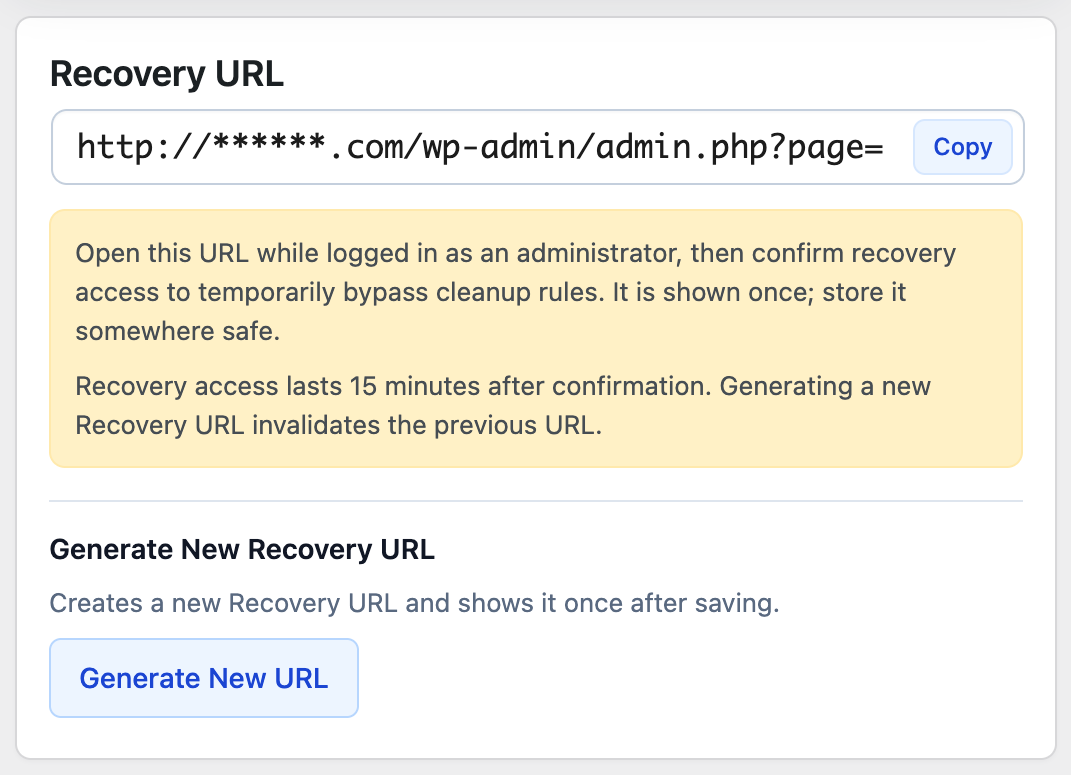
Save Your Recovery URL Before You Need It
Do not wait until you have an access problem to look for your Recovery URL.
Before applying significant restrictions, save the recovery information somewhere you can access without relying on the WordPress admin area.
Suitable locations may include:
- A trusted password manager.
- Secure internal project documentation.
- Another protected location available to the website administrator.
Avoid storing your only copy somewhere inside WordPress.
If the admin area becomes inaccessible, recovery information stored only there may be difficult or impossible to retrieve.
Keep the Recovery URL Private
Treat your Recovery URL as sensitive recovery information.
The Recovery URL alone does not grant administrative access and does not immediately activate Recovery Mode.
Recovery still requires:
- A valid WordPress login.
- A user account with the
manage_optionscapability. - Confirmation through the recovery form.
- A valid security nonce.
These checks prevent the URL itself from acting as an administrative bypass.
Even with these protections, do not expose the Recovery URL unnecessarily.
Do not:
- Publish the Recovery URL.
- Include it in public documentation.
- Share it in public support tickets.
- Post screenshots containing the complete recovery information.
- Send it to users who do not need administrative recovery access.
Keep recovery information private and share it only with trusted website administrators.
Recovery URL and WordPress Permissions
Recovery URL does not bypass WordPress authentication or grant additional WordPress capabilities.
To activate Recovery Mode, the user must already be authenticated and have the manage_options capability.
Using Recovery Mode does not turn a lower-privileged WordPress account into an Administrator.
The relationship is:
WordPress authentication and capabilities determine whether the user is authorized to perform administrative recovery.
Recovery confirmation verifies that an authorized administrator intentionally wants to start a recovery session.
DAC Recovery Mode temporarily bypasses DAC restrictions for the recovery session.
Recovery is designed to help authorized administrators correct DAC configuration problems.
It does not replace WordPress authentication or permission management.
Recovery URL and Page Locks
Recovery URL is especially useful when a Page Lock prevents you from reaching an admin page required to correct the configuration.
Once the 15-minute recovery session is active, open DAC and review the affected Page Lock directly.
Because manual Page Locks have their own targeting conditions, check:
- Which page is locked.
- Which roles or users the rule targets.
- Whether the rule should exist.
- Whether the redirect destination is appropriate.
- Whether another related Page Lock is also involved.
Correct the rule and save the configuration while the recovery session is active.
After Recovery Mode expires, test the page again using the appropriate WordPress account to confirm that the corrected rule behaves as expected.
Recovery Mode Is Temporary
A Recovery URL does not provide permanent bypass access.
After an authorized administrator confirms the recovery request, DAC creates a recovery session that lasts 15 minutes.
During that time, DAC restrictions are temporarily bypassed so the configuration can be reviewed and corrected.
When the recovery session expires, normal DAC restrictions resume automatically.
If you regularly need Recovery Mode to perform normal administrative work, review your DAC configuration instead of repeatedly using recovery.
Depending on the problem, check:
- Global Audience.
- Owner and Manager access.
- Menu Cleaner.
- Page Locks.
- Other DAC cleanup settings.
Trusted administrators should normally be able to manage the website without relying on emergency recovery.
After Recovering Access
Once Recovery Mode is active, identify the cause before making additional changes.
For shared cleanup issues, check:
- The current Global Audience mode.
- Which roles or users are targeted.
- Whether the affected account should receive the cleanup.
- Whether Owner or Manager access is configured correctly.
- Which Cleaner feature caused the unexpected result.
For Page Lock issues, check the conditions of the Page Lock itself, since manual Page Locks are targeted independently from Global Audience.
After correcting the problem:
- Save the DAC configuration.
- Review any related settings that may have contributed to the issue.
- Allow the recovery session to expire.
- Test normal access again.
- Preview the affected role where appropriate.
- Test important Page Locks and workflows with actual WordPress user accounts.
Do not assume that successful access during Recovery Mode means the original configuration has been fixed.
The important test is how DAC behaves again after the temporary recovery session is no longer active.
Test Your Recovery Preparation
You do not need to intentionally create a broken configuration to prepare for recovery.
Before handing a website over to a client, confirm that:
- Recovery information has been generated.
- You know where it is stored.
- A trusted administrator can access it.
- The trusted administrator can log in to WordPress normally.
- The administrator has the required
manage_optionscapability. - The Recovery URL is available independently from WordPress admin.
- It has not been exposed to client or public users.
A recovery mechanism is useful only if the people responsible for the website can find and use it when needed.
If the Recovery URL Is Unavailable
If the Recovery URL is unavailable or the normal recovery flow cannot be completed, DAC provides another recovery mechanism through Safe Mode.
Safe Mode is intended for situations where Recovery URL access is unavailable or impractical.
Unlike Recovery URL, Safe Mode is enabled outside the WordPress admin interface through wp-config.php.
This makes it an additional fallback for administrators who have access to the website files or server configuration.
See Safe Mode for instructions.
Recovery URL vs. Safe Mode
Recovery URL and Safe Mode both help recover from problematic DAC configurations, but they use different recovery paths.
| Recovery URL | Safe Mode | |
|---|---|---|
| Recommended first recovery option | Yes | No |
| Requires saved recovery information | Yes | No |
| Requires WordPress authentication | Yes | No |
Requires manage_options |
Yes | No |
| Requires recovery confirmation | Yes | No |
| Requires file or server access | No | Yes |
Requires editing wp-config.php |
No | Yes |
| Bypasses DAC restrictions | Yes, after confirmation | Yes |
| Recovery duration | 15-minute session | Until Safe Mode is disabled |
| Intended for temporary recovery | Yes | Yes |
In most situations, use the Recovery URL first.
Use Safe Mode when the Recovery URL is unavailable or the normal recovery process cannot be completed.
Recommended Safety Workflow
Before applying significant DAC restrictions:
- Configure the correct Owner and trusted Managers.
- Save your Recovery URL securely.
- Make sure it is available outside WordPress.
- Confirm that a trusted administrator has the required WordPress access.
- Configure Global Audience carefully.
- Apply Page Locks gradually.
- Preview affected roles.
- Test important Page Locks with appropriate WordPress accounts.
- Keep hosting or server access available when possible.
- Know how to enable Safe Mode as a fallback.
A few minutes spent preparing recovery access can save much more time if a configuration mistake occurs later.
Next Step
Continue with Safe Mode to learn how to temporarily bypass DAC restrictions through wp-config.php when the normal Recovery URL process is unavailable.