
Page Locks
Page Locks lets you restrict access to selected WordPress admin pages for specific roles or users.
While Menu Cleaner controls what users see in the WordPress admin navigation, Page Locks controls whether selected admin pages can actually be accessed.
Use Page Locks when hiding a menu item is not enough and you need to prevent certain users from opening the page directly.
Menu Cleaner vs. Page Locks
Menu Cleaner and Page Locks serve different purposes.
Menu Cleaner simplifies the admin interface.
For example, hiding Plugins removes it from the admin menu for users affected by your cleanup configuration. However, if a user still has the required WordPress capability, they may be able to open the Plugins page using its direct URL.
Page Locks restricts access to the selected admin page.
A simple rule to remember is:
Hide it when users do not need to see it. Lock it when users should not be able to access it.
In many client setups, you may use both features together.
How Page Locks Work
Page Locks are configured as individual access rules.
Each rule defines:
- The admin page you want to protect.
- The roles or users the rule should apply to.
- The behavior used when an affected user attempts to open the page.
Unlike the shared cleanup configuration used by features such as Menu Cleaner, manually created Page Lock rules keep their own targeting conditions.
Changing Global Audience does not automatically replace the conditions of existing manual Page Lock rules.
This allows access restrictions to be configured independently from the general admin cleanup experience.
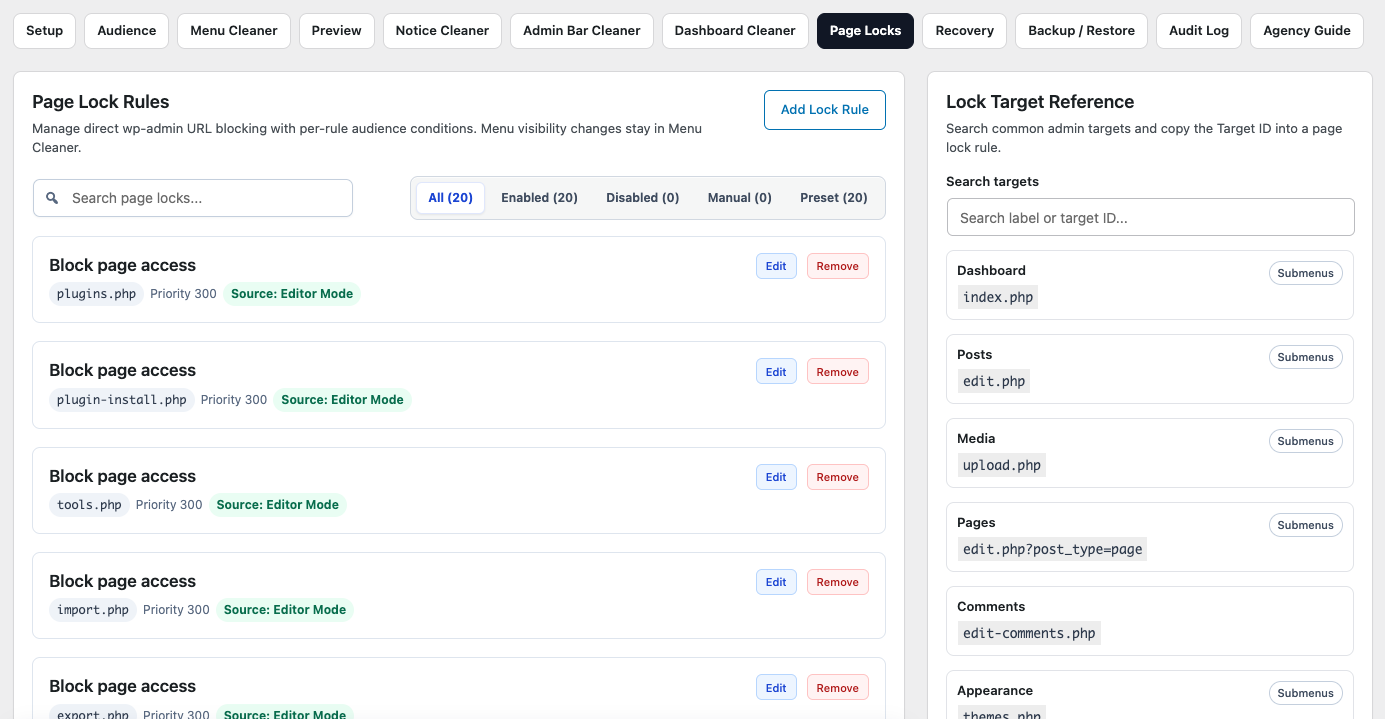
Lock an Admin Page
Open Page Locks in Dran Admin Cleaner.
Create or select a rule for the admin page you want to restrict.
Configure the roles or users that should be affected, then save the rule.
When a matching user attempts to open the protected page, DAC applies the configured Page Lock behavior.
Start with a small number of rules and test them before adding broader restrictions.
Direct URL Access
One of the main reasons to use Page Locks is to handle direct access to WordPress admin pages.
For example, Menu Cleaner may hide the Plugins menu item, but a user could still attempt to open:
/wp-admin/plugins.php
If the Plugins page is protected by a Page Lock that applies to that user, DAC can prevent access even when the URL is entered directly.
This is the key difference between hiding navigation and restricting page access.
Redirecting Locked Pages
When an affected user attempts to open a locked admin page, DAC can redirect them away from the restricted location.
Choose a destination that remains accessible to the users affected by the rule.
Avoid redirecting users to another page that is also locked for them, as this can create a confusing or invalid navigation flow.
After configuring a redirect, test it using an account that matches the Page Lock conditions.
Targeting Roles and Users
Each manual Page Lock can define who the restriction applies to.
Depending on the rule, you can target:
- WordPress roles — useful when the same page should be restricted for a group of users.
- Individual users — useful when access should be restricted for specific accounts.
For example, you might restrict a plugin settings page for the Editor role while allowing Administrators to continue accessing it normally.
Because Page Locks have their own targeting conditions, you can create access rules that differ from your Global Audience configuration.
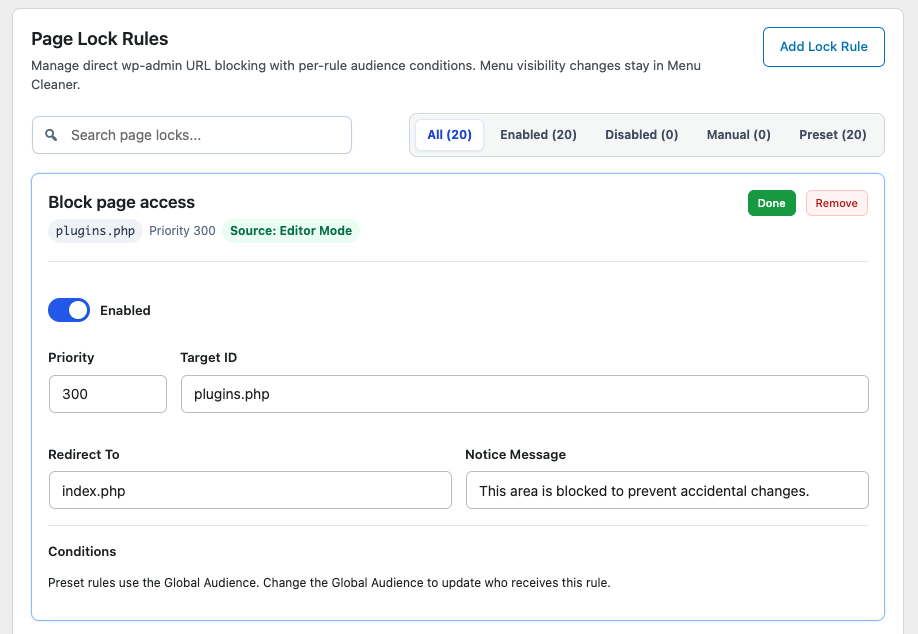
Page Locks Do Not Change WordPress Capabilities
Page Locks do not rewrite the WordPress roles and capabilities system.
DAC adds a page-level restriction while leaving the user's underlying WordPress role and capabilities unchanged.
This is useful when a specific admin page should be unavailable without permanently changing the existing WordPress permission structure.
For broader permission management, WordPress roles and capabilities should remain the primary authorization system.
What Should You Lock?
Use Page Locks selectively.
Good candidates are admin pages that particular users should not access as part of their normal workflow.
Depending on the website, this may include:
- Plugin management pages.
- Theme management pages.
- Selected settings pages.
- Plugin configuration pages.
- Maintenance or administrative tools.
Do not lock pages simply because they look technical.
WordPress and third-party plugins may use admin URLs for internal workflows, form processing, redirects, or configuration screens.
Restrict only the pages you clearly need to protect, then test the related workflows afterward.
Third-Party Plugin Pages
Page Locks can also be used with admin pages registered by WordPress plugins.
However, third-party plugins do not all structure their admin pages in the same way.
A plugin may:
- Use several admin URLs for one feature.
- Redirect between multiple admin pages.
- Process forms through a different admin endpoint.
- Use shared WordPress admin pages for part of its workflow.
Because of this, always test Page Locks applied to third-party plugin pages before using them for clients or production users.
Test Your Page Locks
After creating a Page Lock, verify the result before adding additional restrictions.
A good test is to:
- Confirm that the rule targets the intended role or user.
- Open the page through its normal admin navigation.
- Try opening the page using its direct URL.
- Confirm that the redirect destination works correctly.
- Verify that users who should retain access are unaffected.
- Test any related workflow that may depend on the locked page.
Whenever possible, perform the final test using an actual WordPress account that matches the intended Page Lock conditions.
Safety and Recovery
Page Locks can affect access to important WordPress admin areas, so configure them more carefully than simple menu visibility changes.
Before creating broader restrictions:
- Make sure your own administrative access remains protected.
- Review DAC's safety and recovery mechanisms.
- Keep any required recovery information available.
- Add a small number of Page Locks at a time.
- Test each important restriction.
- Back up a known working DAC configuration before making significant changes.
If a configuration causes an access problem, DAC provides recovery mechanisms designed to help restore administrative access.
See Owner & Manager Access, Recovery URL, and Safe Mode for details.
Example: Protecting Plugin Management
Suppose a client uses the Editor role and should manage website content but should not access plugin management.
You could configure Menu Cleaner to hide the Plugins menu item for the client's cleanup audience.
Then create a Page Lock for the Plugins page that targets the Editor role.
The result is:
- Plugins is removed from the client's admin navigation.
- Direct access to the Plugins page is also restricted.
- Users who do not match the Page Lock conditions remain unaffected.
This combines a cleaner admin interface with an actual page-level access restriction.
Recommended Approach
When using Page Locks:
- Use Menu Cleaner when you only need to simplify navigation.
- Add a Page Lock when direct access to a page must also be restricted.
- Target only the roles or users that require the restriction.
- Choose a redirect destination that remains accessible.
- Add a small number of locks at a time.
- Test both normal navigation and direct URL access.
- Verify that users who should retain access are unaffected.
- Review your safety and recovery options.
- Back up a working configuration before making significant changes.
Page Locks are most effective when used selectively rather than as a replacement for the WordPress permission system.
Next Step
After configuring Page Locks, test the affected workflows with an appropriate WordPress user account.
You can also continue to Preview to review the general admin experience for supported roles, and review Safety & Recovery before applying broader access restrictions.