Owner & Manager Access
Owner and Manager access helps keep trusted administrative accounts outside the normal Dran Admin Cleaner (DAC) cleanup configuration.
When configuring DAC for clients or other users, you may simplify admin menus, notices, dashboard widgets, and toolbar items for the people who use the website day to day.
The people responsible for maintaining the website and DAC itself usually need a different experience.
Owner and Manager access provides a trusted layer for those accounts.
Why Protected Access Matters
Consider a website managed by an agency. The website may have:
- A developer who maintains WordPress.
- An agency administrator who manages the website.
- A client who manages content.
- Editors or authors who publish content.
The client-facing accounts may receive a simplified WordPress admin experience, while the people responsible for maintaining the website need the normal administrative interface.
Owner and Manager access helps keep those responsibilities separate.
For example:
Site Owner → Trusted DAC access
Manager → Trusted DAC access
Client → Cleanup configuration applied
Content Editor → Cleanup configuration applied
This lets you customize the client experience without applying the same cleanup to the people responsible for maintaining DAC and the website.
Owner Access
The Owner is the primary trusted account in DAC.
The Owner is automatically kept outside the normal shared cleanup configuration.
This is particularly useful when your Global Audience includes broad groups of users, including roles with significant WordPress permissions.
For example, a website may have several Administrator accounts, while only one of them is responsible for maintaining DAC.
The designated Owner can remain unaffected by the cleanup configuration while other users receive the customized admin experience.
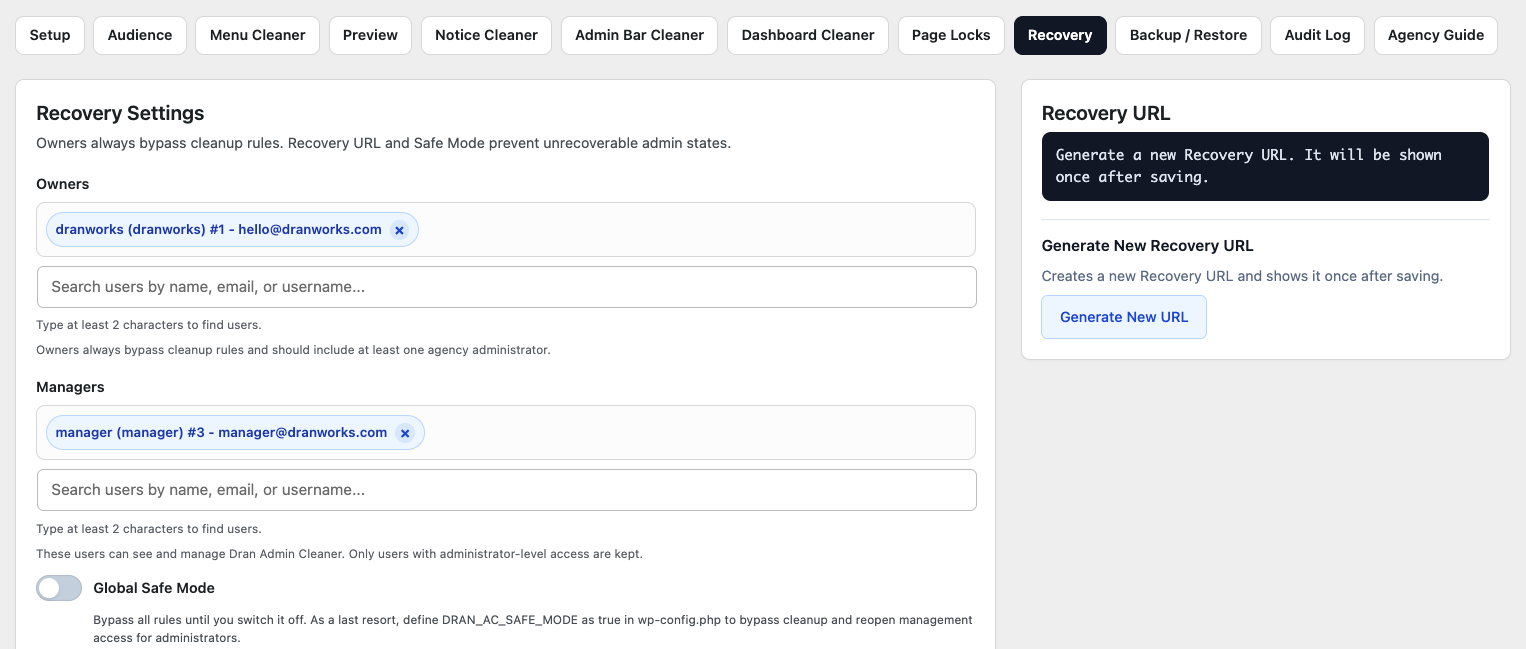
Owner Bypass
Owner Bypass prevents the designated Owner from receiving the shared DAC cleanup configuration.
This includes cleanup applied through features such as:
- Menu Cleaner
- Notice Cleaner
- Dashboard Cleaner
- Admin Bar Cleaner
The Owner can continue working with the normal WordPress admin interface while configuring the experience provided to other users.
Owner Bypass is automatic and does not require the Owner to be manually excluded from Global Audience.
Manager Access
Managers are additional trusted users who are allowed to manage DAC without becoming the primary Owner.
This is useful when more than one person is responsible for maintaining a website.
For example, an agency might have:
Owner → Lead developer
Manager → Project developer
Manager → Site administrator
while client-facing users continue receiving the configured cleanup experience.
Managers also bypass DAC rules, allowing them to maintain DAC without being affected by the client-facing setup.
Owner vs. Manager
Owner and Manager accounts are both trusted DAC users, but they serve different purposes.
| Owner | Manager | |
|---|---|---|
| Primary trusted DAC account | Yes | No |
| Bypasses shared cleanup | Yes | Yes |
| Can manage DAC | Yes | Yes |
| Suitable for additional trusted administrators | No | Yes |
| Typical quantity | One | As needed |
For most websites, one Owner is sufficient.
Add Managers only when other trusted users genuinely need to maintain DAC.
Example: Agency and Client Setup
Suppose an agency manages a website with the following users:
| User | Role | Responsibility |
|---|---|---|
| Agency Developer | Administrator | Website maintenance |
| Agency Support | Administrator | Client support |
| Client Owner | Administrator | Business administration |
| Content Editor | Editor | Content management |
A possible DAC setup would be:
Owner
- Agency Developer
Manager
- Agency Support
Global Audience
- Only selected
- Client Owner
- Content Editor
The agency accounts remain outside the shared cleanup configuration.
The client accounts receive the simplified admin experience configured through DAC.
This keeps DAC management separate from the users receiving the cleanup.
Owner and Manager Bypass Global Audience
Owner and Manager bypass takes priority over the shared cleanup targeting configured through Global Audience.
For example, suppose Global Audience is set to:
Everyone
The Owner and Managers still remain outside the shared cleanup configuration.
The same applies when their role or account would otherwise match Only selected or Everyone except targeting.
This means you do not need to build special Audience exclusions simply to protect trusted DAC accounts.
Owner, Managers, and Page Locks
Owner and Manager accounts bypass DAC rules, including Page Locks.
This means Page Lock restrictions are not applied to users configured as the DAC Owner or as trusted Managers.
Page Locks can still define their own role and user targeting conditions for normal users, but Owner and Manager bypass takes priority over those rules.
For example:
Page Lock → Restrict Plugins page for Administrator
DAC Owner → Not restricted
DAC Manager → Not restricted
Other Administrator → Restricted if the Page Lock conditions match
This allows trusted DAC maintainers to retain access even when broad Page Lock rules affect other administrative users.
Manager Access Should Be Limited
Manager access should be assigned only to trusted users who genuinely need to maintain DAC.
A Manager can work with settings that affect the admin experience of other users.
Do not assign Manager access simply because someone has a WordPress Administrator role.
WordPress administration and DAC management are related responsibilities, but they are not necessarily the same responsibility.
Give DAC management access only to people who actually need to configure DAC.
Do Not Rely on a Single Safety Mechanism
Owner and Manager access are part of DAC's safety model, but they should not be your only recovery plan.
DAC also provides recovery mechanisms for situations where normal administrative access becomes difficult.
These include:
- Recovery URL
- Safe Mode
Before applying significant access changes, make sure you understand how these mechanisms work.
Keeping an independent recovery method available is especially important on production websites.
Changing the Owner
If responsibility for the website changes, update the Owner carefully.
Before removing or replacing the existing Owner, make sure the new trusted account:
- Exists and can log in normally.
- Has the appropriate WordPress permissions.
- Can access DAC.
- Has been assigned correctly as the new Owner.
- Can review and manage the existing DAC configuration.
Do not remove the previous trusted account until you have confirmed that the new Owner can manage DAC successfully.
Removing a Manager
Remove Manager access when a user no longer needs to maintain DAC.
This may be necessary when:
- A developer leaves the project.
- An agency stops maintaining the website.
- A temporary administrator no longer needs access.
- Responsibility for the website changes.
Regularly reviewing trusted DAC accounts helps keep management access limited to the people who currently need it.
Recommended Setup
For most client websites, a simple setup is enough:
- Assign one trusted account as the Owner.
- Add Managers only when additional trusted users need to maintain DAC.
- Configure client-facing users through Global Audience.
- Confirm that Owner and Managers remain outside the cleanup experience.
- Apply cleanup changes gradually.
- Test Page Locks separately when access restrictions are involved.
- Keep Recovery URL information available.
- Understand how to use Safe Mode before making significant changes.
This creates a clear separation between the people maintaining the website and the people receiving the customized admin experience.
Next Step
Continue with Recovery URL to learn how to regain administrative access when a DAC configuration causes an unexpected problem.
You should also review Safe Mode as an additional recovery option.