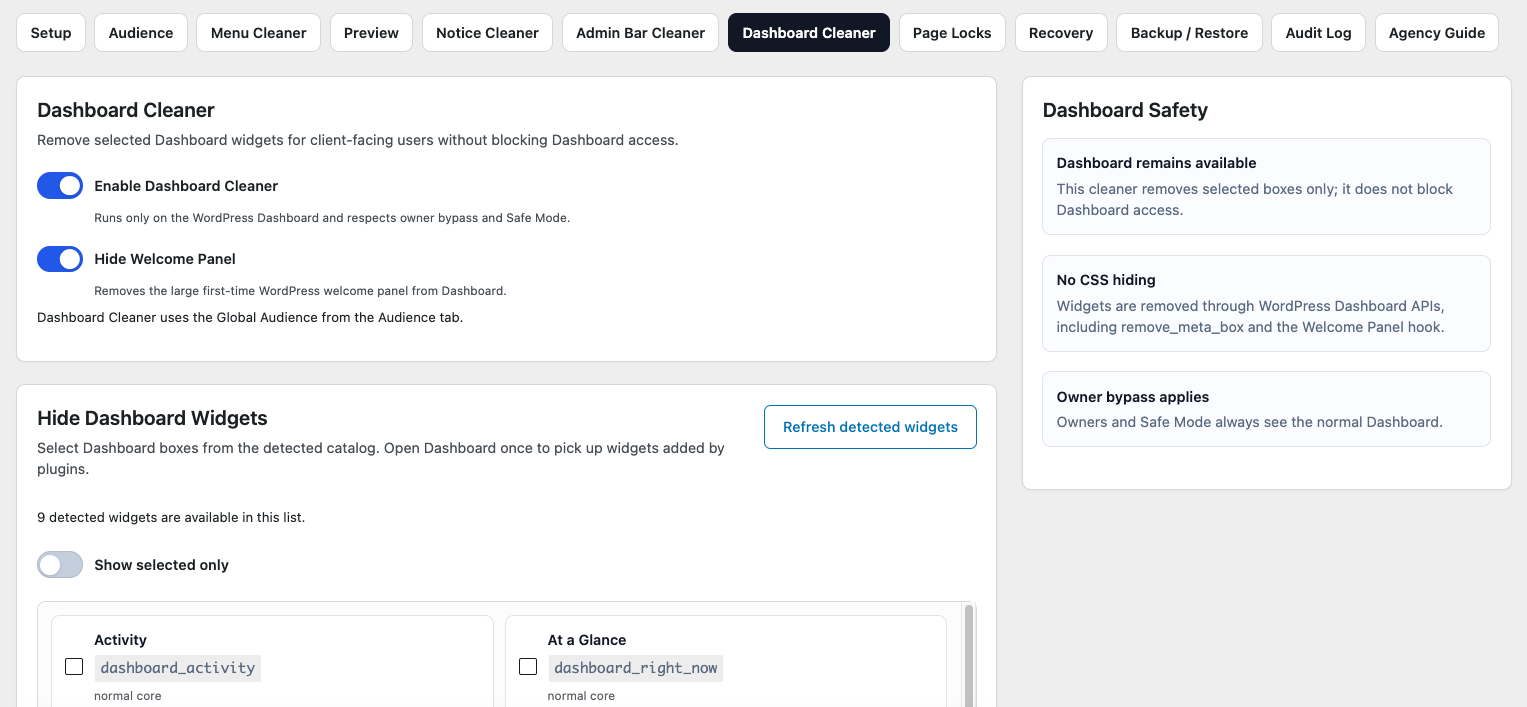
Dashboard Cleaner
Dashboard Cleaner helps simplify the WordPress Dashboard by hiding widgets and panels that are unnecessary for users who match your Global Audience configuration.
WordPress core and installed plugins can add widgets to the Dashboard. Over time, this can create a busy workspace containing information, shortcuts, promotions, and statistics that clients or other users may not need.
Dashboard Cleaner lets you reduce that clutter while keeping useful Dashboard information available.
How Dashboard Cleaner Works
Dashboard Cleaner scans supported widgets registered on the WordPress Dashboard and makes them available for configuration.
You can choose which widgets should be hidden for users who match your DAC Global Audience.
Supported widgets may come from:
- WordPress core.
- Themes.
- Plugins.
- Other components that register standard WordPress Dashboard widgets.
Dashboard Cleaner changes what affected users see on the Dashboard without modifying WordPress core files or the plugins that created those widgets.
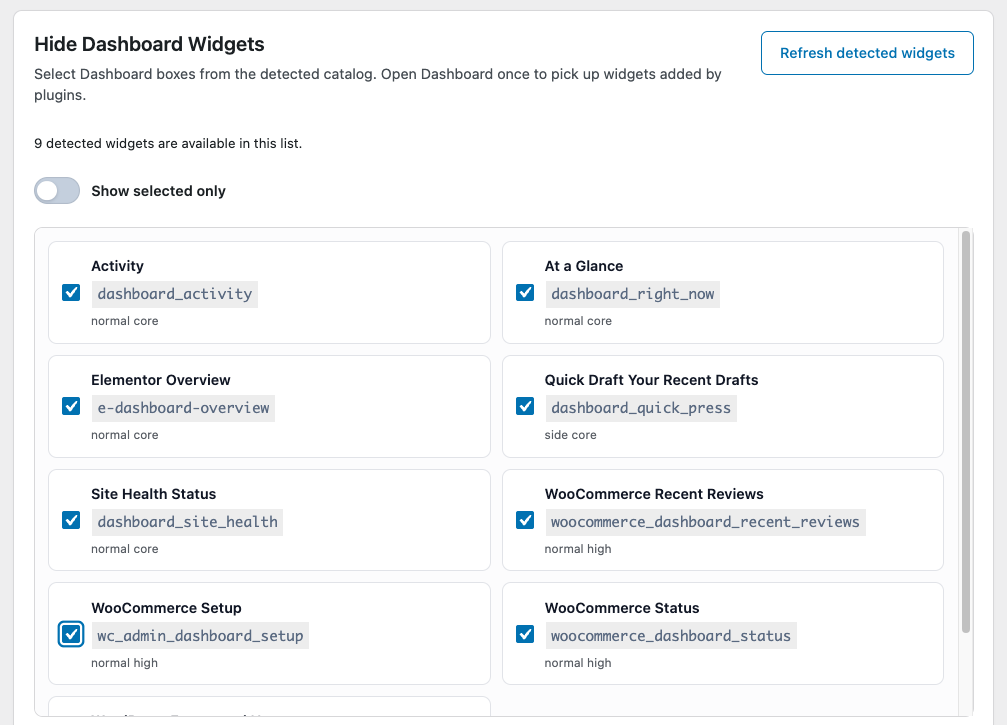
Hide Dashboard Widgets
Use Dashboard Cleaner to hide widgets that are unnecessary for your users.
Depending on the website, the WordPress Dashboard may contain widgets such as:
- At a Glance
- Activity
- Quick Draft
- Site Health Status
- Plugin-specific widgets
- SEO summaries
- Analytics summaries
- Form statistics
- Marketing or promotional panels
You do not need to hide every widget.
Keep widgets that provide useful information, shortcuts, or status updates for the people using the website.
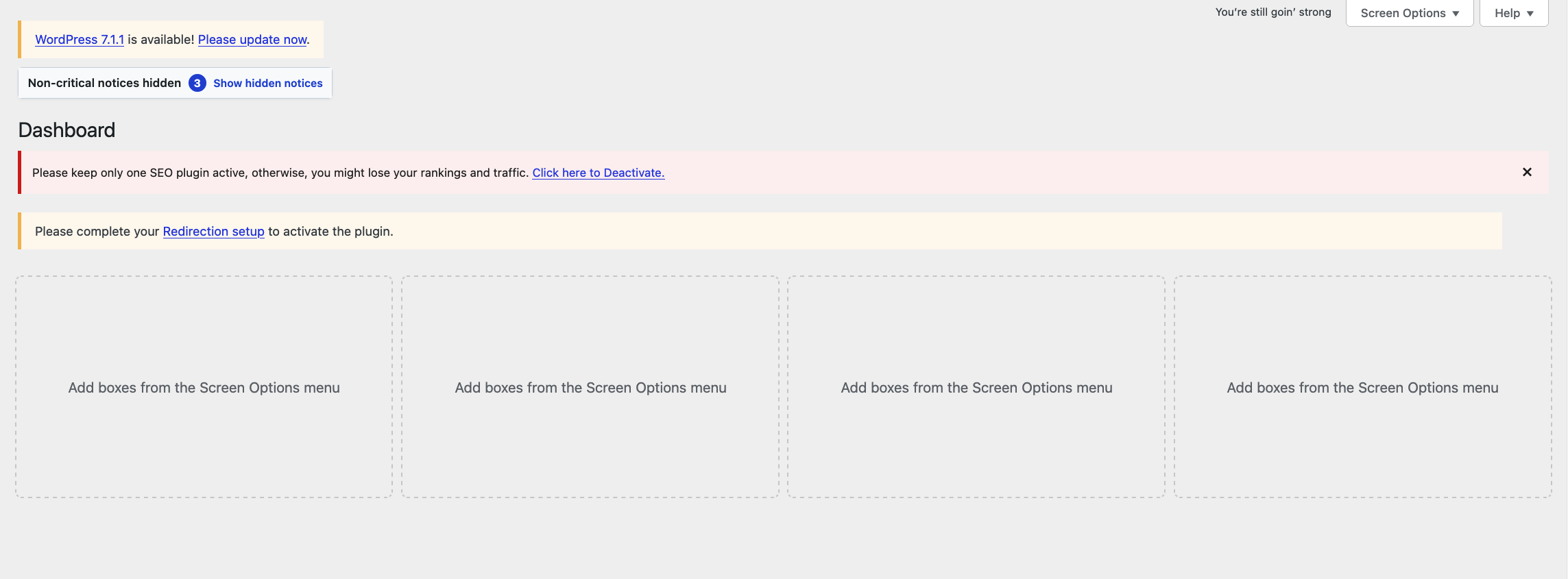
Welcome Panel
WordPress may display a Welcome panel on the Dashboard with introductory information and shortcuts.
If the panel is unnecessary for your selected audience, Dashboard Cleaner can hide it.
This can be useful on established websites where users already understand their normal workflow and no longer need the introductory WordPress shortcuts.
Plugin Dashboard Widgets
Many WordPress plugins add their own Dashboard widgets.
For example, plugins may display:
- Statistics.
- Recent submissions.
- SEO information.
- Security information.
- Setup reminders.
- Product announcements.
- Upgrade promotions.
Dashboard Cleaner can manage supported widgets registered through the standard WordPress Dashboard system.
This allows you to keep useful plugin widgets while hiding those that are irrelevant to the affected users.
Widget Scanner
The widgets available on a WordPress website depend on the software currently installed and active.
Dashboard Cleaner scans the Dashboard environment to identify supported widgets that can be managed.
If you install or activate a plugin that adds a new Dashboard widget, review Dashboard Cleaner again to determine whether the new widget should remain visible.
The same applies after significant plugin or theme updates that change the Dashboard.
Global Audience Applies
Dashboard Cleaner uses the DAC Global Audience configuration.
This allows different users to receive a simplified Dashboard without removing widgets globally from WordPress.
For example, an Editor used by a client can receive a reduced Dashboard while Administrators outside the configured audience continue seeing the normal Dashboard.
Owners and managers who bypass cleanup remain unaffected.
See Audience for more information about Global Audience modes and targeting.
Dashboard Cleaner Does Not Delete Widget Data
Hiding a Dashboard widget does not delete the information behind it.
For example, hiding an analytics widget does not delete analytics data, and hiding a form statistics widget does not remove form submissions.
Dashboard Cleaner only controls whether the supported widget is displayed to affected users.
The plugin or WordPress feature that owns the widget continues to manage its underlying data normally.
Third-Party Widget Compatibility
Most standard WordPress Dashboard widgets can be detected through the APIs WordPress provides for registering Dashboard components.
However, third-party plugins can build their interfaces in different ways.
Some plugins may:
- Render custom Dashboard content outside the standard widget system.
- Load content dynamically with JavaScript.
- Create their own admin pages instead of Dashboard widgets.
- Change how their widgets are registered between plugin versions.
Because of this, Dashboard Cleaner may not be able to manage every custom element that appears in the WordPress admin area.
If a plugin creates its own admin page rather than a Dashboard widget, Menu Cleaner or Page Locks may be more appropriate.
After Installing or Updating Plugins
Installing, activating, or updating a plugin may introduce new Dashboard widgets.
After significant changes to the website, review the WordPress Dashboard and Dashboard Cleaner again.
Check whether new widgets provide useful information to your users or simply add unnecessary clutter.
This is especially useful before handing an updated website back to a client.
Example: A Client Dashboard
Suppose a client's WordPress Dashboard contains:
At a Glance
Activity
Quick Draft
Site Health Status
SEO Overview
Analytics
Form Submissions
Plugin News
Upgrade Promotion
The client primarily edits content and reviews form submissions.
A simplified Dashboard might keep:
At a Glance
Activity
Form Submissions
while hiding the remaining widgets.
Users outside the affected Global Audience can continue seeing their normal Dashboard.
This gives client-facing users a workspace that better matches their responsibilities without removing the underlying Dashboard functionality.
What Should You Keep?
A smaller Dashboard is not automatically a better Dashboard.
Before hiding a widget, consider whether it helps the user:
- Understand the current state of the website.
- Complete a frequent task.
- Notice something that requires attention.
- Access information relevant to their responsibilities.
If a widget provides genuine value, keep it.
The purpose of Dashboard Cleaner is to remove unnecessary clutter, not to create an empty Dashboard.
Preview and Test
After configuring Dashboard Cleaner, use Preview to review the resulting Dashboard for a selected role.
Check that useful widgets remain available, unnecessary widgets are removed, and important information has not been hidden accidentally.
The Dashboard should still provide a useful starting point after login.
For important client workflows, perform a final test using an appropriate WordPress user account.
Recommended Approach
When configuring Dashboard Cleaner:
- Configure the appropriate Global Audience.
- Identify which Dashboard widgets are useful to those users.
- Hide unnecessary core and plugin widgets.
- Hide the Welcome panel when it no longer provides value.
- Preview the affected role.
- Test important workflows using an appropriate account.
- Review Dashboard Cleaner again after installing or significantly updating plugins.
Avoid hiding widgets simply to make the Dashboard look minimal.
A good Dashboard should be focused, not empty.
Limitations
Dashboard Cleaner manages supported WordPress Dashboard widgets and the Welcome panel.
It is not intended to redesign the WordPress Dashboard, modify arbitrary plugin interfaces, or control content throughout the entire WordPress admin area.
For other parts of the admin experience, use the appropriate DAC feature:
- Menu Cleaner for admin navigation.
- Notice Cleaner for supported admin notices.
- Admin Bar Cleaner for toolbar items.
- Page Locks for admin page access restrictions.
Next Step
Continue with Admin Bar Cleaner to simplify the WordPress admin toolbar for your selected audience.
You can also use Preview to review how Dashboard Cleaner works together with your other shared DAC cleanup settings.