Menu Cleaner
Menu Cleaner lets you customize the WordPress admin menu for users who match your Global Audience configuration.
You can hide unnecessary menu items, rename menu labels, and reorder the admin navigation to create a simpler and more focused experience for clients and other users.
Menu Cleaner changes how the admin menu is presented. It does not modify WordPress roles or capabilities.
How Menu Cleaner Works
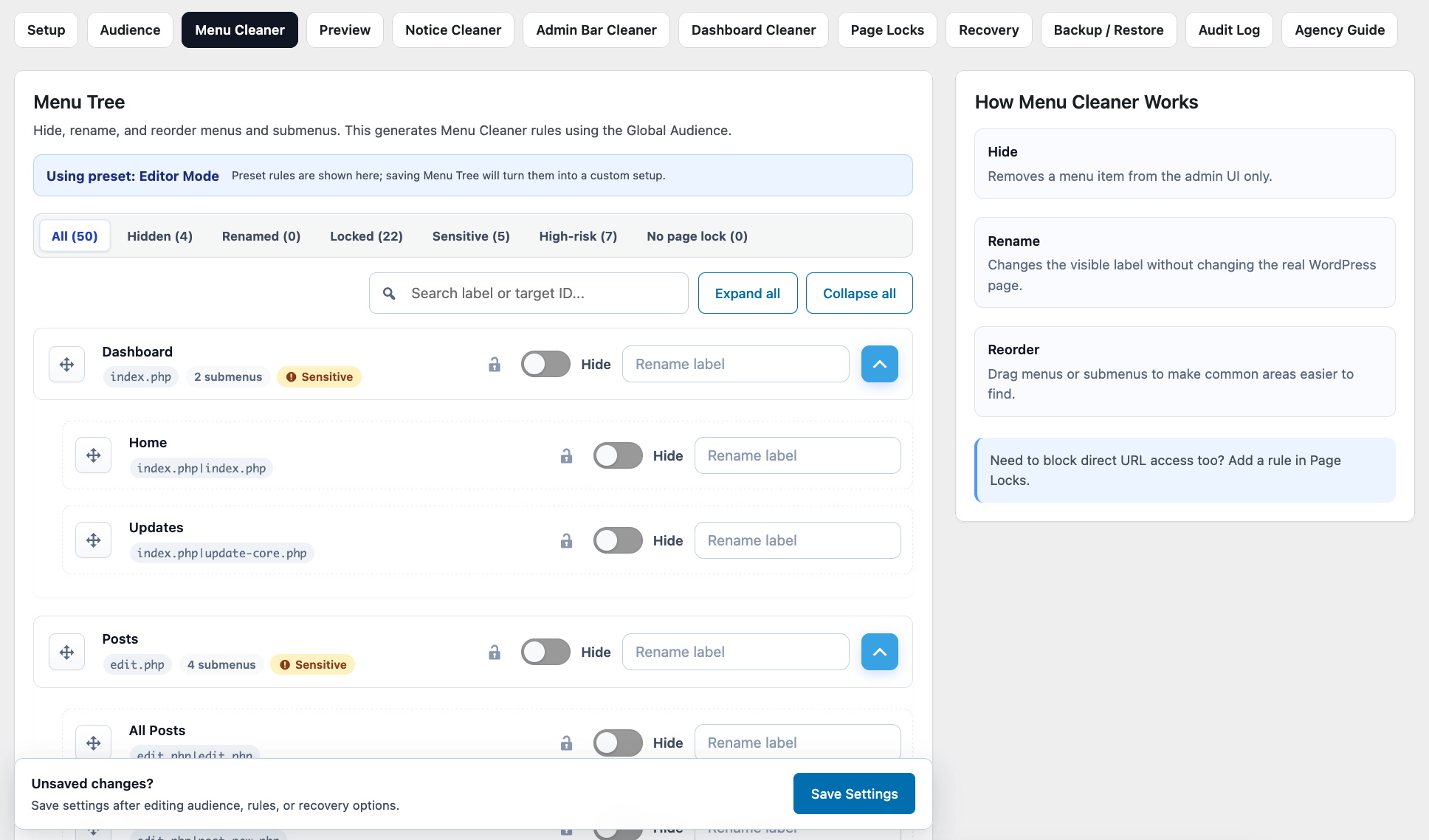
Menu Cleaner scans the available WordPress admin menu and displays it as a tree of top-level menu items and their submenus.
From this interface, you can control how supported menu items appear to users who match your DAC Audience settings.
Depending on the menu item, you can:
- Hide it.
- Rename its displayed label.
- Change its position in the admin menu.
- Configure supported submenu items independently.
Changes are applied only to users affected by the current Global Audience configuration. Owners and managers who bypass cleanup remain unaffected.
Hide Menu Items
Use Hide when a menu item is unnecessary for the selected audience.
For example, a client who only manages website content may not need to see:
- Plugins
- Tools
- Appearance
- Settings
- Plugin-specific configuration pages
Hiding unnecessary items can make the WordPress admin area easier to navigate and reduce distractions.
After saving your configuration, affected users will no longer see the hidden items in their admin menu.
Hiding Is Not Access Restriction
This distinction is important:
Hiding a menu item does not necessarily prevent access to the underlying admin page.
If a user knows the direct URL and still has the required WordPress capabilities, the page may remain accessible.
Menu Cleaner is designed to simplify the admin interface, not replace WordPress permissions.
If a page must not be accessible, use Page Locks.
Hide Submenu Items
Menu Cleaner can also control supported submenu items.
This is useful when users need access to a main WordPress section but do not need every page within it.
For example, you may want users to access Posts while hiding a submenu they do not use.
Be careful when hiding multiple submenu items beneath the same parent. Preview and test the resulting navigation to make sure users can still reach the pages they need.
Rename Menu Items
Menu Cleaner allows you to replace the displayed label of supported admin menu items.
For example:
Posts → Articles
or:
Media → Files
Renaming can make WordPress terminology easier to understand for a particular client or workflow.
Only the displayed menu label changes. Renaming does not change:
- The underlying WordPress page.
- The page URL.
- WordPress capabilities.
- Stored content or post types.
Use short, clear labels so the admin navigation remains easy to scan.
Reorder Menu Items
You can reorder supported menu items to place frequently used sections in more convenient positions.
For example, a content-focused website might place:
- Pages
- Posts
- Media
- Form submissions
near the top of the admin navigation while moving less frequently used sections lower.
Reordering affects only the presentation of the admin menu. It does not change the functionality of the underlying WordPress pages.
Plugin Menu Items
WordPress plugins can register their own top-level menus and submenus.
Menu Cleaner can detect many of these items and display them alongside standard WordPress menu items.
This allows you to simplify navigation created by both WordPress and installed plugins.
Because third-party plugins control how their own admin pages are registered, behavior can vary between plugins.
After changing third-party menu items, preview and test the affected workflow to make sure everything still behaves as expected.
Newly Added Menu Items
The WordPress admin menu can change when you:
- Install a new plugin.
- Activate or deactivate a plugin.
- Change themes.
- Enable new features.
- Update software that adds or changes admin pages.
Newly registered menu items may not automatically match an existing Menu Cleaner configuration.
After making significant changes to your WordPress installation, review Menu Cleaner to make sure the admin navigation still matches the experience you want to provide.
Menu Cleaner Is Not a Security Boundary
Menu Cleaner controls what users see in the WordPress admin navigation.
It should not be treated as an access-control or security mechanism.
If users must be prevented from opening a specific admin page, use the appropriate WordPress capabilities and, where applicable, Page Locks.
Preview Your Menu
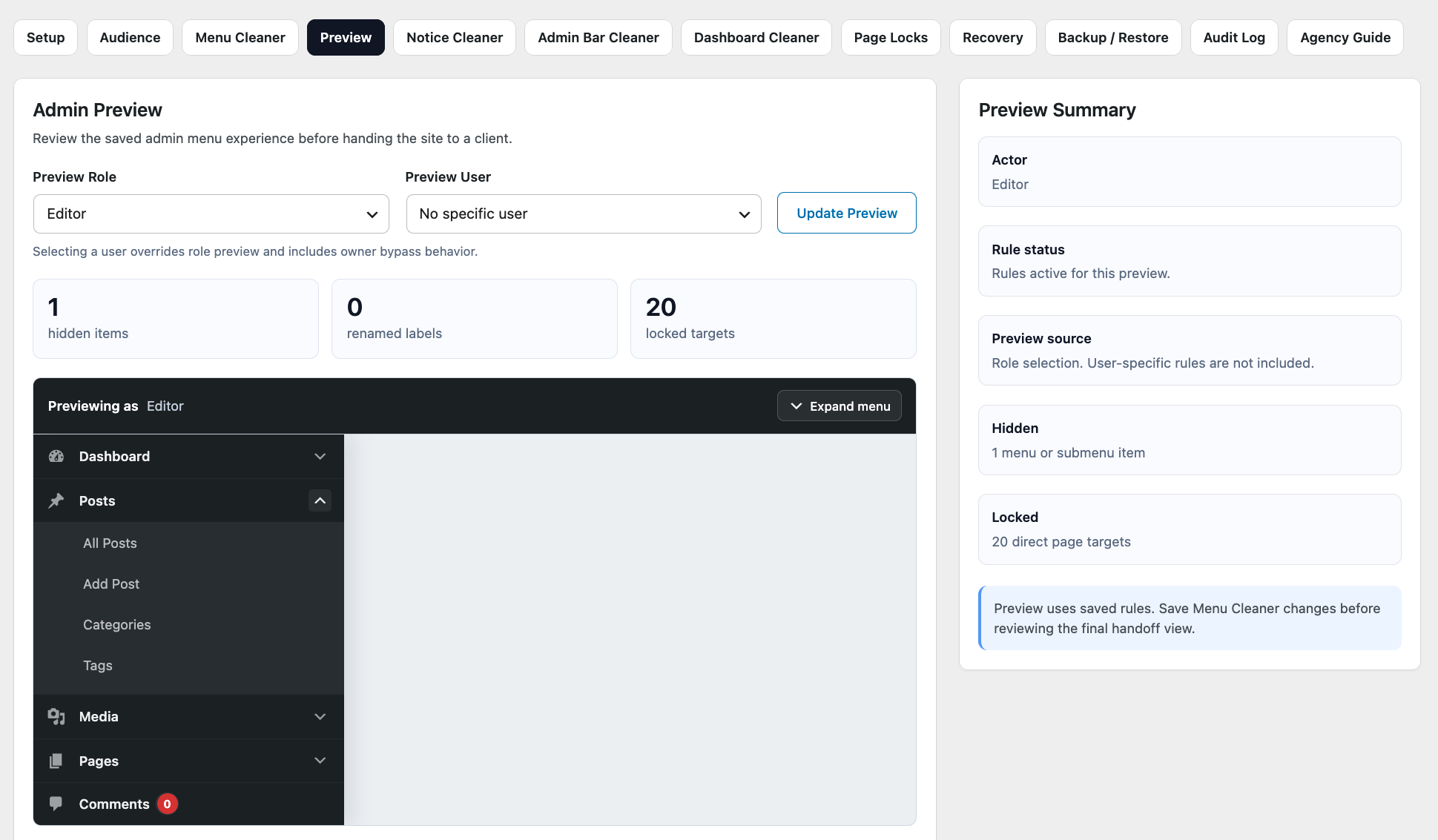
After saving your changes, use Preview to inspect the admin menu for a selected role.
Check that:
- Required menu items are still visible.
- Hidden items are no longer displayed.
- Renamed labels are clear.
- Menu ordering feels natural.
- Important workflows remain accessible.
Preview provides a convenient way to review the resulting admin experience, but important production workflows should also be tested with an appropriate WordPress user account.
Example: Simplifying a Client Dashboard
Suppose a client is responsible only for editing website content and reviewing form submissions.
Their default WordPress menu might contain:
Dashboard
Posts
Media
Pages
Comments
Appearance
Plugins
Users
Tools
Settings
Forms
SEO
A simplified menu could become:
Dashboard
Pages
Articles
Media
Forms
Menu Cleaner can hide unnecessary items, rename Posts to Articles, and reorder the remaining navigation.
The underlying WordPress permissions and content remain unchanged. The affected users simply receive a cleaner admin navigation.
Recommended Approach
When configuring Menu Cleaner:
- Configure the Global Audience that should receive the changes.
- Hide only items users do not need for their normal work.
- Rename labels only when the new terminology is genuinely clearer.
- Place frequently used sections in convenient positions.
- Use Page Locks when actual access restriction is required.
- Preview the affected role.
- Test important workflows before handing over the website.
Avoid hiding items simply to make the menu as small as possible.
The goal is to make WordPress easier to use, not to make useful tools difficult to find.
Next Step
If you need to prevent users from directly opening specific WordPress admin pages, continue to Page Locks.
To verify how your customized admin experience appears to different roles, see Preview.