Notice Cleaner
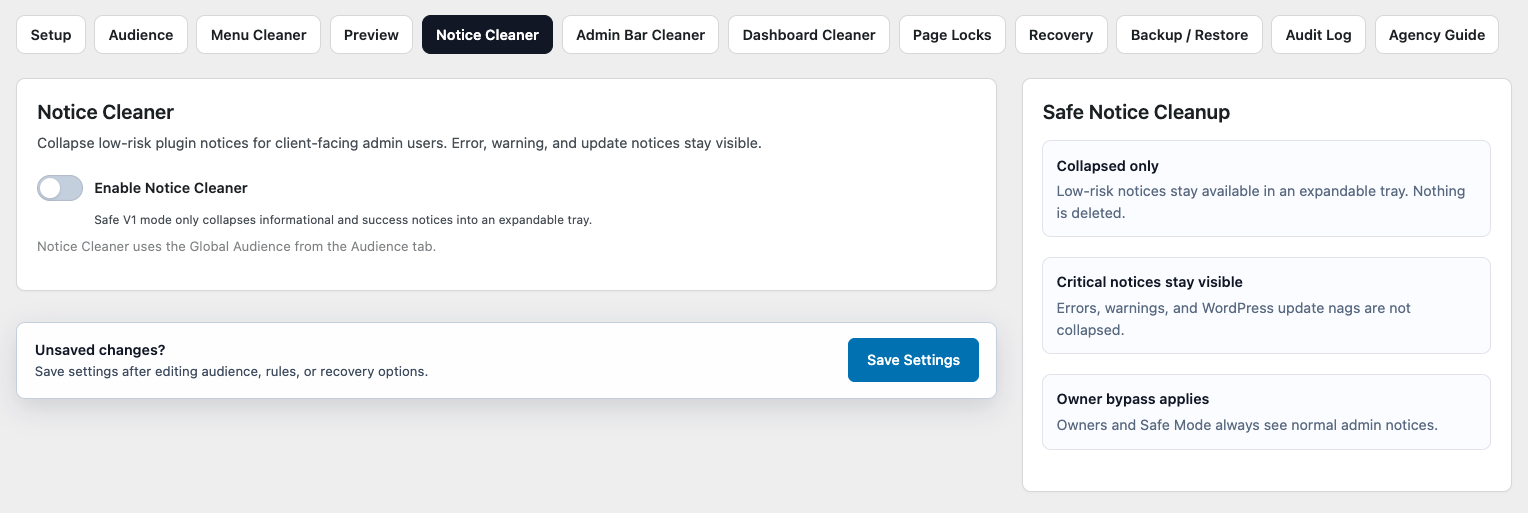
Notice Cleaner helps reduce visual clutter in the WordPress admin area by moving supported non-critical notices into an expandable tray.
WordPress plugins and themes can display notices for many reasons, including setup instructions, promotions, reminders, update messages, and administrative information.
On websites with several plugins, these notices can quickly take over the top of the admin screen and distract users from their normal work.
Notice Cleaner keeps supported notices available while moving them out of the main workspace.
How Notice Cleaner Works
Notice Cleaner does not permanently dismiss or remove supported notices.
Instead, DAC identifies notices that are safe to collapse and moves them into an expandable tray for users who match the configured Global Audience.
Users can open the tray whenever they want to review the collapsed notices.
This reduces visual clutter without making the notices inaccessible.
Important Notices Remain Visible
Notice Cleaner is intentionally conservative.
DAC does not collapse notices that use warning, error, or update-related notice classes such as:
.notice-error.error.notice-warning.update-nag.updated-nag
These notices remain in their normal WordPress location.
The goal is to reduce routine clutter without moving potentially important warnings or update information out of immediate view.
Notice Cleaner collapses supported non-critical notices. It does not hide critical warnings.
Collapse Supported Notices Into a Tray
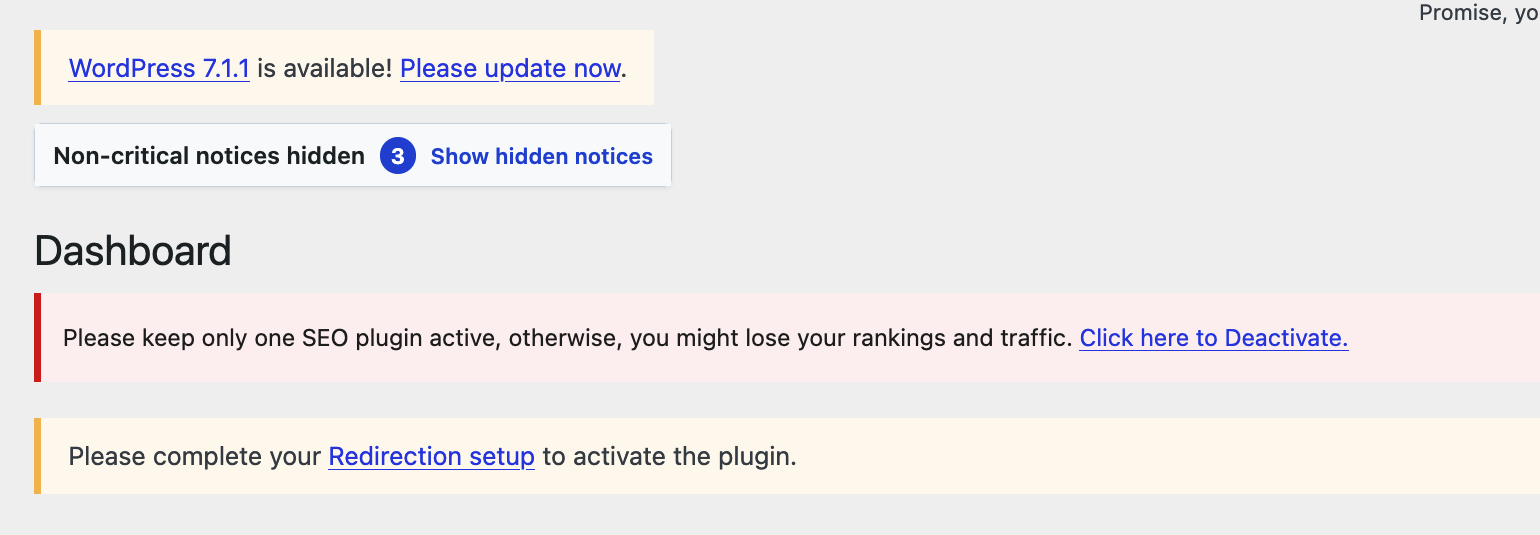
Supported notices are moved from the main admin area into an expandable tray.
This can be useful for notices such as:
- Promotional messages.
- Review requests.
- Optional setup reminders.
- Integration suggestions.
- Other supported informational notices that do not require immediate attention.
The notice still exists and remains available to the user.
Notice Cleaner only changes how the supported notice is presented.
The Expandable Notice Tray
When supported notices are collapsed, DAC provides a tray that users can open to review them.
This creates a quieter admin workspace while preserving access to the original notice content.
A user can:
- Continue working without several notices occupying the top of the screen.
- Open the tray when they want to review collapsed notices.
- Still see warnings and other protected notice types normally.
The tray provides a middle ground between displaying every notice prominently and permanently dismissing notices.
Global Audience Applies
Notice Cleaner uses the DAC Global Audience configuration.
This allows you to collapse supported notices for selected roles or users without changing the notice experience for everyone.
For example:
Only selected → Editor
Editors can receive the collapsed notice tray while users outside that audience continue seeing supported notices in their normal locations.
Owners and Managers who bypass shared cleanup are unaffected.
See Audience for details.
Notice Cleaner Does Not Dismiss Notices at the Source
Collapsing a notice through DAC is different from dismissing it inside the plugin or theme that created it.
Notice Cleaner does not normally change the originating plugin's internal notice state.
For example, if a plugin continues generating a supported notice, DAC may continue placing it in the tray when that user visits the admin area.
The plugin itself remains responsible for deciding when the notice should stop being generated.
Third-Party Plugin Notices
Many WordPress plugins create notices using standard WordPress admin notice patterns.
Notice Cleaner can work with supported notices that match the structures DAC recognizes.
However, plugins are free to build their interfaces in different ways.
Some may:
- Use custom HTML instead of standard admin notice markup.
- Render banners outside normal WordPress notice areas.
- Load messages dynamically with JavaScript.
- Build custom interfaces that only resemble admin notices.
Because of this, not every message displayed in the WordPress admin area can be moved into the Notice Cleaner tray.
A message remaining outside the tray does not necessarily indicate a DAC problem.
After Installing or Updating Plugins
New or updated plugins may introduce additional admin notices.
After significant plugin changes, review the WordPress admin area using an account affected by your Global Audience.
Check that:
- Supported routine notices are being collapsed as expected.
- Warning and error notices remain visible.
- Plugin-specific custom messages still make sense in the resulting admin experience.
Because third-party plugins can change how their notices are rendered, review Notice Cleaner again after major plugin updates when necessary.
Example: A Client Content Dashboard
Imagine a client logs in to edit pages and publish articles.
The admin area contains several routine messages:
Plugin A: Please leave us a review.
Plugin B: Try our premium features.
Plugin C: Complete this optional integration.
There is also:
WordPress or plugin warning requiring attention.
Notice Cleaner can move the supported routine notices into the expandable tray while leaving protected warning or error notices in their normal location.
The client gets a cleaner workspace without losing access to the collapsed information.
Test With an Actual User Account
Notice Cleaner is not currently represented in DAC Preview.
To verify the result, log in using an appropriate WordPress account that matches the intended Global Audience.
Check that:
- Supported notices appear in the expandable tray.
- The tray can be opened normally.
- Notice content remains accessible.
- Warning and error notices remain visible.
- Third-party custom messages behave as expected.
Testing with an actual account is the most reliable way to review the Notice Cleaner experience.
Recommended Approach
When configuring Notice Cleaner:
- Configure the appropriate Global Audience.
- Test with an account that matches that audience.
- Confirm that supported routine notices are collapsed into the tray.
- Open the tray and verify that the notices remain accessible.
- Confirm that warning, error, and update-related notices remain visible.
- Review the result again after installing or significantly updating plugins.
Do not treat every admin message as something that should be cleaned up.
The goal is to reduce routine visual noise while keeping potentially important information visible.
Limitations
Notice Cleaner only handles supported notices that DAC can safely identify and collapse.
It does not:
- Permanently dismiss notices.
- Delete notice content.
- Suppress protected warning or error notice classes.
- Guarantee control over arbitrary messages created by third-party plugins.
- Replace WordPress monitoring, security, maintenance, or update-management tools.
Website administrators should continue reviewing important WordPress and plugin information normally.
Next Step
Continue with Dashboard Cleaner to simplify the WordPress Dashboard for your selected audience.